
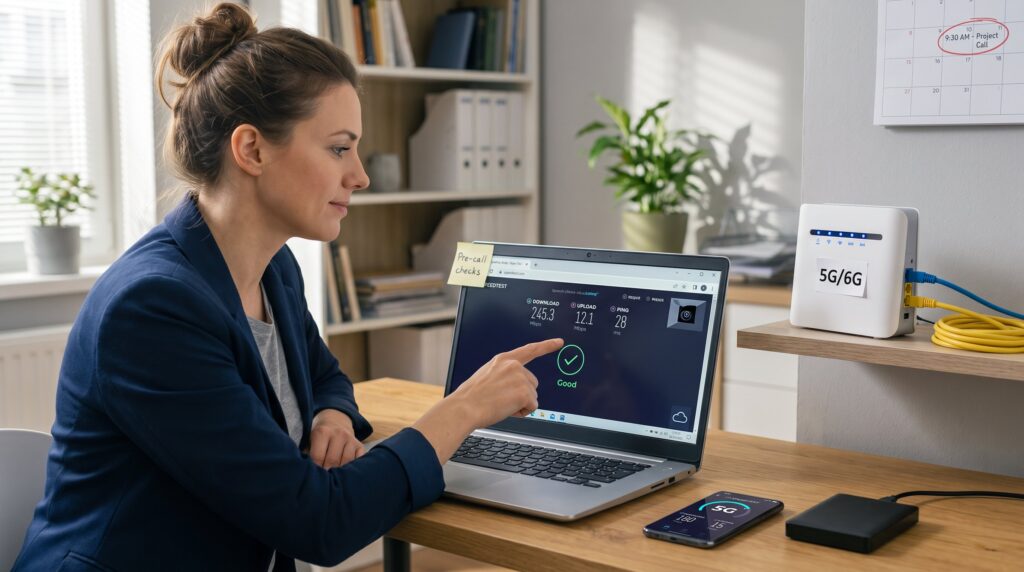
Internet Access Tips for Remote Work and Video Calls help remote workers avoid dropped meetings, poor audio, and frozen video. In 2026, a practical check before any call saves minutes and stress: confirm upload speed, ping, and that no background backup is running. This guide gives concise, actionable checks and fixes for people who need stable, low-latency connections for work and group video calls. It focuses on measurable thresholds and simple steps that produce immediate results.
Key Takeaways
- Verify your internet upload speed is at least 5 Mbps and ping under 50 ms before every video call to ensure stable remote work connections.
- Close background processes like cloud backups or large file transfers to free up upload bandwidth and prevent call interruptions.
- Optimize your home network by using a dedicated router with QoS features, enabling 5/6 GHz Wi-Fi bands, and keeping firmware updated.
- Prepare a backup internet connection such as a 5G mobile hotspot or secondary ISP to avoid disruptions during outages.
- Run a quick video conferencing app test before calls to check audio and video functionality, minimizing technical issues in meetings.
- Implement simple, regular checks and maintain tested backups to reduce stress and keep remote work video calls smooth and reliable.
Essential Internet Checks To Do Before Every Video Call
Essential Internet Checks To Do Before Every Video Call
Fact first: a reliable video call needs sufficient upload, low ping, and low jitter. Before a meeting, run a speed test and confirm at least 10–25 Mbps download and 5 Mbps upload per active caller for HD group calls. Aim for ping under 50 ms and jitter below 15 ms. If numbers fall short, reduce video resolution or join by audio only.
Practical checks to run in the 3–5 minutes before a call:
- Run a quick speed test (Speedtest or Fast) and note upload and ping. Keep a screenshot if troubleshooting is needed.
- Check device upload headroom: ensure at least 3–5 Mbps free after other traffic. Close cloud sync or paused big transfers.
- Confirm no scheduled backups, OS updates, or game patches are running. These often start automatically and consume upload.
- Test the conferencing app in advance: open camera and microphone, then check local preview and echo.
Real example: one remote product manager noticed 40% packet loss during standups because Windows Backup started at 9 a.m. After moving backup to off-hours, call stability improved immediately. Small pre-call checks like these avoid predictable failures.
Links that expand on choosing a plan or equipment are helpful when symptoms repeat. For guidance on selecting service options, consult a short guide on how to compare ISPs.
Optimize Your Home Network For Consistent Performance
Optimize Your Home Network For Consistent Performance
Fact first: a stable network comes from a good modem-router pairing, updated firmware, and deliberate bandwidth management. Use the ISP modem in bridge mode when possible and pair it with a quality router. Weekly reboots and automatic firmware updates reduce memory leaks and performance drift.
Specific steps to apply this week:
- Put the ISP modem in bridge mode and use a dedicated router that supports QoS and 5/6 GHz bands. This reduces double NAT and improves reliability.
- Enable automatic firmware updates for both modem and router: schedule a weekly router reboot during off-hours if the router lacks self-restart features.
- Prefer 5 GHz or 6 GHz Wi‑Fi for calls: avoid 2.4 GHz for conferencing because congestion and interference increase latency.
A common mistake: leaving cloud sync running on the work laptop. One consultant lost video twice before realizing Dropbox was uploading a 15 GB folder. Pause syncs during work hours or set limits in the sync client. This context pairs well with the resource guide for readers who want more detail.
For more on router features and what to look for when buying, read a compact review on picking a router.
Troubleshooting Live Call Problems And Planning Reliable Backups
Troubleshooting Live Call Problems And Planning Reliable Backups
Fact first: a backup plan prevents a single failure from derailing work. If video starts failing, switch to a backup connection or audio dial-in immediately.
Reliable backup strategies to set up now:
- Keep a mobile hotspot ready and test its speed monthly. Modern 5G hotspots can deliver low-latency connections that serve as temporary failover.
- Maintain a secondary ISP where feasible (cheap DSL or fixed wireless) for critical roles. If budget is tight, a low-cost cellular data plan often suffices as emergency backup.
- Have a backup device (phone or tablet) with the conferencing app installed and signed in. Keep meeting dial-in numbers in the calendar entry.
Honest lesson: one team lead relied on a single fiber connection and lost an entire day of interviews during a local outage. After adding a $15/month cellular data backup, the next outage had no business impact.
For guidance that combines privacy and connectivity best practices, consult a focused resource on internet privacy tips.
Conclusion
Stable remote work video calls rely on measurable thresholds and simple preparation: sufficient upload bandwidth, ping under 50 ms, low jitter, and deliberate router setup (placement, QoS, and the right use of Ethernet or 5/6 GHz Wi‑Fi). Practicing pre-call checks, keeping a tested backup connection, and knowing a few quick mid-call fixes cut interruptions and reduce stress for teams and individuals alike.