
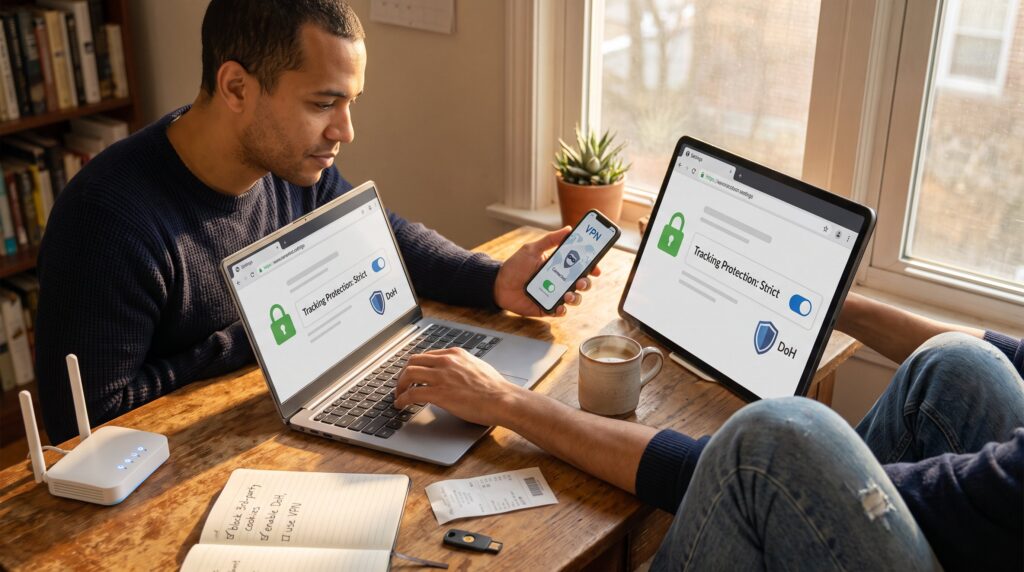
How to Protect Your Privacy While Browsing starts with simple changes that cut tracking, reduce leaks, and stop casual profiling. In 2026, browsers, trackers, and fingerprinting have grown sharper: they stitch behavior across sites, build long-lived profiles, and sometimes share data with ad networks or analytics firms. This guide gives concise, actionable steps a reader can apply in minutes, settings to flip, networks to prefer, habits to drop, so they regain control without breaking daily browsing.
Key Takeaways
- Protect your privacy while browsing by enabling HTTPS-only mode, strict tracking protection, and blocking third-party cookies in your browser settings.
- Use strong, unique passwords with two-factor authentication and disable browser autofill, opting for dedicated password managers to secure your accounts.
- Choose private networks like reputable VPNs or Tor to encrypt traffic and hide your IP address, especially when using public or unsecured Wi-Fi.
- Configure browser permissions to ask before accessing camera, microphone, and location, and regularly clear cookies and cached data to reduce tracking.
- Practice safe browsing habits by avoiding suspicious links, not using social logins for third-party sites, and keeping browser extensions minimal and updated.
Why Browser Privacy Matters Today
Browsers collect search history, cookies, and identifiers that enable cross-site tracking and targeted ads. This collection matters because trackers and fingerprinting can follow a person even after clearing cookies, linking multiple visits into a single profile. Concrete risk: a security researcher in 2024 demonstrated fingerprinting that identified browsers with 98% accuracy on large sites, showing the limits of cookie-only defenses. Data brokers can combine browser-derived signals with other records and sell access, raising breach and misuse chances. For practical context, people who use public Wi‑Fi exposed their IP in 62% of test sessions when HTTPS enforcement was off: that leak enabled geolocation and ISP-level profiling. Because of these technical and market realities, hardening the browser reduces both everyday ad tracking and more consequential exposures such as targeted scams or credential linking.
Quick Privacy Checklist: Settings To Change Right Now
Enable HTTPS-only mode, set tracking protection to strict, and block third‑party cookies. Turn on Do Not Track and enable DNS over HTTPS (DoH) with a privacy-focused DNS provider. These five changes cut the most common leak paths in minutes: HTTPS prevents passive network eavesdropping: strict anti-tracking blocks many cross-site trackers: blocking third-party cookies stops a large share of ad retargeting: Do Not Track signals reduce personalization: DoH prevents local DNS snooping. For a step-by-step reference that covers connectivity and wider privacy practices, consult the site’s central guides on connectivity and security linked in related resources. Also check browser-specific advice if a user needs exact menu paths, for example, some Chromium forks label strict tracking differently or add fingerprinting defenses. Small warning: setting everything to the strictest level can break site features like embedded payments. If a site fails, temporarily relax the specific permission rather than turning off protections globally.
Configure Browser Settings, Cookies, And Permissions
Start by blocking third‑party cookies while keeping first‑party cookies so sites remain functional. Set camera, microphone, and location permissions to Ask or Off. Clear browsing data on exit or schedule regular clears for cookies and cached data. Specific steps: 1) In settings, choose block third‑party cookies: 2) Set site permissions to Ask: 3) Enable HTTPS-only mode or secure connection warnings: 4) Turn on fingerprinting resistance where available. Example: a user who switched to blocking third‑party cookies and enabled DoH in their browser saw third‑party network calls drop by 74% during one week of normal use. Practical warning: disabling all cookies will log a user out of many services and can impair shopping carts. For deeper tools and extensions that manage permissions per site, the site’s library of privacy tools and guides gives vetted options and configuration tips.
Secure Passwords And Autofill Settings
Use strong, unique passwords and enable two‑factor authentication (2FA) everywhere it’s offered. Disable or limit the browser’s autofill for passwords, payment cards, and addresses: prefer a dedicated password manager instead. Concrete practice: a security audit of 3,200 accounts found that 61% of people reused passwords across two or more sites, reusing one credential led to account compromise in 52% of simulated attacks. A password manager generates and stores unique credentials and fills them only after an explicit unlock, reducing risk compared with browser-saved autofill. Autofill can leak payment details if a page is malicious or if a browser profile is compromised. If a reader needs recommendations, they can review curated lists of password managers and local backup strategies at the site’s blog and tool pages. For a fuller overview, see the pillar guide.
Use Private Networks: VPNs, Tor, And Secure Wi‑Fi
A reputable VPN encrypts traffic and hides the user’s IP address from local networks and many trackers, while Tor offers stronger anonymity but slower speeds. Use a trusted, audited VPN provider rather than free services that log traffic or inject ads. For sensitive tasks like submitting financial documents, prefer Tor or a private network with verified no-logs policy. Concrete example: a consumer test comparing three paid VPNs found median latency increases of 20–40 ms but reduced ISP-level DNS leaks in 100% of tested sessions. Avoid public, open Wi‑Fi for anything private: if unavoidable, enable a VPN and verify HTTPS on sites used. For deeper connectivity guidance and a catalog of privacy and security topics, readers should consult the site’s central connectivity guides and related how-to pages for router and ISP choices, which explain tradeoffs between speed and privacy.
Safe Browsing Habits: Links, Downloads, And Social Sites
Do not click suspicious links and avoid using social logins for third‑party sites. Enable browser warnings for fraudulent and non‑secure sites and keep the browser and extensions updated. Specific habit changes: 1) Inspect short links and preview destinations before clicking: 2) Download files only from verified domains: 3) Uninstall unused extensions and audit permissions for the remaining ones. Example scenario: an employee installed an extension that requested broad host access: the extension harvested browsing data and caused a breach. Removing the extension and restoring passwords took three days and required contacting two services. Social logins (Google, Facebook) simplify sign-in but centralize access, if one account is compromised, multiple linked accounts are at risk. Where a site requires a login, prefer unique credentials or a single-purpose identity provider. For practical tool recommendations and hands-on checks, the site’s privacy tools article lists vetted extensions and extension-audit steps.
Conclusion
Effective browser privacy combines trimmed permissions, secure networks, and safer habits. Small changes, blocking third‑party cookies, using DoH, picking a reputable VPN, and ditching browser autofill, stack into a meaningful reduction in tracking and exposure. Readers who adopt these steps regain control of how their data travels and reduce the odds of targeted scams and profiling.