
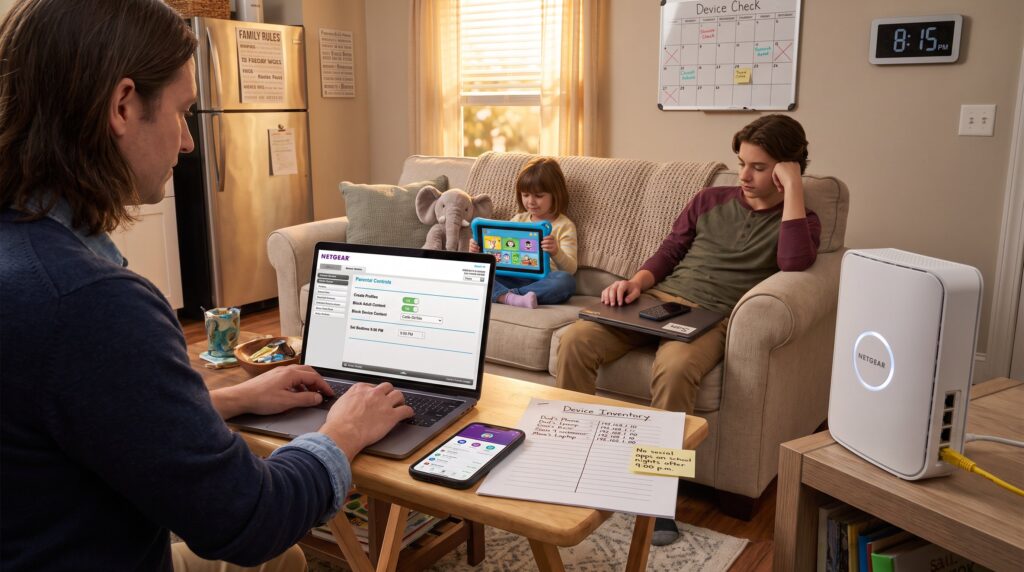
How to Set Up Parental Controls for Home Internet is a step‑by‑step practical guide for parents in 2026 who want a layered, manageable plan. It explains three layers, family rules, router‑level controls, and device‑level tools, and shows how to make a working inventory, apply networkwide filters, and add device and app controls. The guide focuses on quick wins (block adult content, schedule bedtimes) plus long‑term maintenance so protections keep pace as children age.
Key Takeaways
- Setting up parental controls begins by defining family rules, device inventories, and age-appropriate filters to create clear and enforceable internet guidelines.
- Use router-level parental controls to manage network-wide filters and schedules, enabling centralized blocking of adult content and time restrictions for all connected devices.
- Popular routers like TP-Link, Netgear, and ISP-provided devices offer simple, step-by-step parental controls accessible via web interfaces or mobile apps for easy setup and monitoring.
- Device-level controls such as iOS Screen Time, Android Family Link, and Microsoft Family Safety complement router filters by managing app usage and location on individual devices.
- Regularly monitor reports, update firmware, and test blocks to maintain effective parental controls that adapt to children’s evolving online habits.
- Combining family rules, router settings, and device apps into a layered parental control system ensures comprehensive and flexible home internet safety.
Define Your Goals, Family Rules, And Device Inventory
Start with clear goals: what must be blocked, when access ends, and which apps matter most. Write three specific rules, one for content, one for time, one for exceptions. Example: “No social apps on school nights after 9:00 p.m.: video allowed 30 minutes after assignments: educational apps always on.” This opening fact makes choices obvious.
Next, make a device inventory. Count phones, tablets, laptops, game consoles, smart TVs, and IoT devices. A practical family in 2026 might list 7 devices: two parents’ phones, three kids’ tablets, a shared laptop, and a streaming TV. Map each child to exact devices and note operating systems and login accounts. Record MAC or IP addresses when possible, this simplifies assigning devices inside a router interface.
Finally, match filters to ages. For preschoolers choose strict web filtering and supervised apps. For teens allow social media but enforce curfews and monitoring. Keep the family rules visible, pin them on a refrigerator or in a shared note app so everyone knows consequences and exceptions. This creates predictable enforcement rather than surprise or resentment.
Set Up Network‑Wide Controls On Your Router (One Place To Manage Everything)
A router can enforce site filtering and schedules across every device on the home network. The short answer: log into the router, enable parental controls, create profiles, assign devices, and set filters plus schedules.
Practical steps: connect to the home Wi‑Fi, open a browser, and enter the router IP (commonly 192.168.0.1 or 192.168.1.1). Use the admin username/password found on the router label or ISP app. Inside the admin panel look for Parental Controls, Access Control, or Family settings. Create a profile for each child, then add devices by name or MAC address and choose filters such as “adult content”, “gambling”, or a custom blacklist. Set time windows for school nights and weekends.
For stronger, whole‑house filtering set a family‑safe DNS like CleanBrowsing in the WAN/Internet settings. That blocks unwanted categories before they reach any device. If the ISP provides a home app with parental features, link profiles there, this centralizes controls and reporting. For further setup tips and privacy guidance, consult the site’s broader security guides in the article on security guides.
A cautionary note: after a firmware reset or ISP swap, parental settings may revert, parents must recheck controls after any network change.
Common Router Interfaces — Step‑By‑Step Quick Setup For Popular Models
Many popular routers provide similar parental features: the practical difference is where the controls live. Here are concise, actionable steps for common brands.
TP‑Link: Go to Advanced → Parental Controls. Enable the feature, add a device by MAC or device name, then set Internet Access Time and Content Restriction categories. Save and test on the child device.
Netgear (Nighthawk/Orbi): Use the Nighthawk or Orbi mobile app. Create profiles, assign devices, set age‑based filters, then schedule nightly cutoffs. The app shows real‑time status.
ISP routers (Verizon, Comcast): Open the ISP home app, navigate to Parental Controls, add a profile, then assign devices and a recommended age filter. Comcast’s xFi and similar ISP tools made these setups easier: a 2017 upgrade for xFi simplified profile creation and scheduling in the provider app, and many ISPs have continued to improve their control panels since then.[1]
Quick testing tip: after changes, attempt to load a blocked site on a child device and note whether DNS or router rules blocked it. If not, clear the device cache and test again. If rules still fail, firmware may need updating.
Configure Device‑Level Controls And Apps For Phones, Tablets, And Computers
Device tools handle app limits, location, and finer controls the router cannot. The core fact: combine OS built‑ins with a cross‑platform app when needed.
On iOS and macOS enable Screen Time. Set downtime, app categories limits, and content & privacy restrictions. On Android use Family Link or Digital Wellbeing to set daily limits and approve apps. Windows families should use Microsoft Family Safety for app and browser filters: macOS and iPadOS can use managed accounts for tighter control.
Third‑party suites like Qustodio add unified reporting and consistent rules across platforms. They give alerts, app blocking, and remote lockdown. If the family has 4+ devices across OSs, a cross‑platform solution often saves time: it lets parents set one schedule rather than managing separate OS panels.
Practical example: a parent discovered one child bypassed a router curfew by switching to cellular data. The lesson: disable cellular access for kids’ devices where possible or configure device screens so cellular data usage is monitored and restricted. For privacy and browsing advice that pairs well with device controls, see the guide on protecting privacy.
Monitor, Maintain, And Troubleshoot Parental Controls Over Time
Monitoring and updates prevent rules from decaying. The essential action: check reports weekly, test blocks monthly, and update firmware and apps promptly.
Parents should review usage reports and alerts to spot new patterns, late night streaming or new app installs. Adjust filters as children age: for example, move a child from strict blocking to supervised social access at a defined age. Keep a change log: note when rules were updated and why.
Troubleshooting checklist: 1) Verify device assignment inside the router: 2) Confirm DNS settings if site blocks fail: 3) Check for VPNs or proxy apps on the child device that can bypass router filters: 4) Update router firmware and parental apps. If a child uses a VPN, parents may either block the VPN app or configure firewall rules to deny VPN protocols. Practical tip: use router logs and a periodic manual attempt to access blocked content to prove controls work.
When choosing long‑term plans for the home connection, parents should also think about upgrades. The article on choosing a Wi‑Fi router helps pick hardware that supports robust parental controls. If parents need to compare ISPs for better parental features, the guide on comparing internet providers adds context.
Conclusion
Parental controls work best as a layered system: clear family rules, router‑level enforcement, and device controls. They require testing, patience, and occasional updates. Start with a documented device list, apply network filters, add device apps, and review usage regularly. That sequence makes online safety manageable and adapts as children grow.