
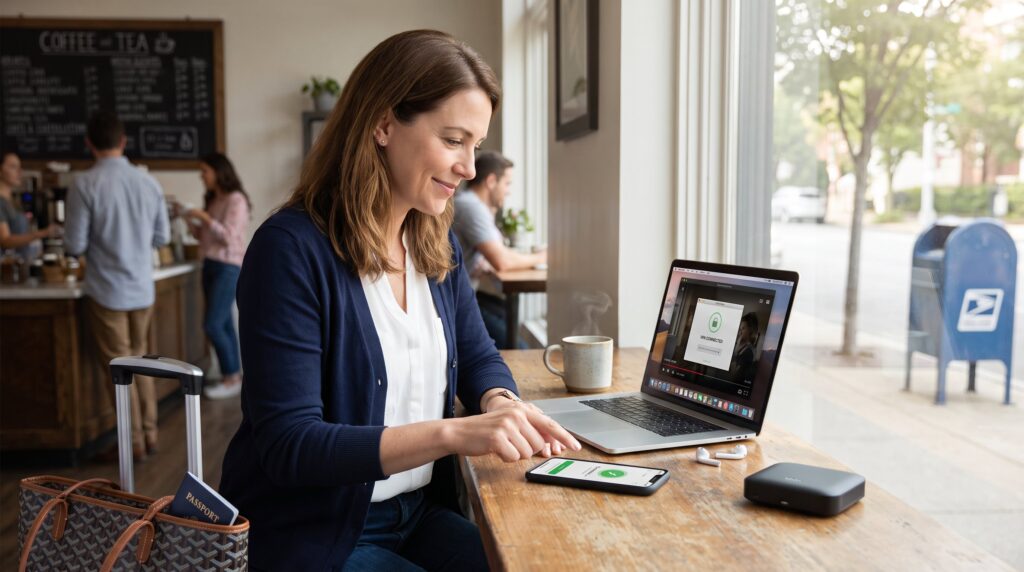
VPN Basics for Everyday Internet Users starts with a clear truth: a VPN hides a device’s real IP and encrypts its traffic so casual snoops and many attackers can’t read it. This guide explains what a VPN does, why someone might use one, and how to pick and set up a service without tech overload. It avoids jargon, uses short examples, and gives concrete steps for mobile, desktop, and router installs. Readers will leave with practical actions they can take today to improve privacy and safety while browsing, streaming, or using public Wi‑Fi.
Key Takeaways
- A VPN encrypts your internet traffic and hides your real IP address, enhancing privacy on home, public, and work networks.
- Using a VPN helps protect against casual tracking and data interception, especially on unsecured Wi‑Fi like cafes and airports.
- Choose a VPN with a no-logs policy, modern protocols like WireGuard, independent audits, and client features such as a kill switch to secure your connection.
- A VPN enables access to region-restricted content by making your device appear in another location, but check service terms and expect some speed reduction.
- Setting up a VPN is quick and user-friendly on mobile and desktop apps, while router installations protect all network devices but require careful configuration.
- Avoid free VPNs that monetize data; paid, audited services offer better security and faster speeds for everyday internet users.
What Is A VPN And Why You Might Need One
A VPN creates an encrypted tunnel between a device and a remote server so onlookers see only scrambled data. For everyday users, that means a home router, airport Wi‑Fi, or an ISP won’t easily read visited sites or intercept passwords. People often choose a VPN to stop casual tracking, protect logins on public networks, or make their device appear located in another country.
Concrete example: when she used airport Wi‑Fi in Madrid, Maria turned on a VPN and prevented the network owner from seeing the names of sites she visited. That single action reduced her immediate risk of credential theft. Another everyday case: someone who works from coffee shops can keep business logins safe without carrying a dedicated hotspot.
Common limits: a VPN does not make someone completely anonymous, nor does it protect against malware already on a device. It also can’t override a site’s account login rules or legal restrictions. For fuller guidance on privacy and network safety, articles like the privacy browsing tips on MyInternetAccess explain complementary actions.
How VPNs Work — A Simple, Nontechnical Overview
Fact: a VPN encrypts outgoing traffic and forwards it through a remote server, which then reaches the destination site. The reverse happens for responses, so a user’s ISP sees only an encrypted connection to the VPN server.
Stepwise picture for clarity: 1) The user opens a VPN app and selects a server. 2) The app and server authenticate and agree on encryption keys. 3) Device traffic is wrapped in an encrypted tunnel (so packets look like noise). 4) The server decrypts packets and forwards them to websites, which see the server’s IP instead of the user’s.
A useful analogy: imagine sending a sealed letter inside a locked courier box. The courier sees a locked box and a destination label (the VPN server), but not the paper inside (the actual websites visited). This explains why VPNs help with privacy but not with device malware, if the letter already contains compromised instructions, sealing it won’t fix that.
If readers want a plain‑language guide to core VPN words and how routing changes work, the VPN terminology guide on MyInternetAccess breaks down terms with diagrams.
Key Benefits For Everyday Users
Privacy And Security: Protecting Your Data On Home And Public Networks
Fact: using a VPN reduces the chance that someone on the same network will read web traffic or steal session tokens. Strong services use AES‑256 or comparable encryption so intercepted packets are practically unreadable.
Practical detail: on a coffee shop Wi‑Fi with 12 other devices, a user who connects a VPN drops the visibility of visited sites from the local router. A typical user will still need a password manager and two‑factor authentication: a VPN complements these protections rather than replaces them.
Honest limit: if a user logs into an account on a compromised site or downloads malware, the VPN can’t undo that mistake. A real incident: one reader installed a free VPN, got a malicious app bundled with it, and had to reinstall his phone, showing why vetted providers and audits matter.
For stepwise privacy practices beyond VPNs, the site’s practical checklist on protecting privacy while browsing gives action items and tools.
Access, Streaming, And Bypassing Geo‑Blocks Safely
Fact: a VPN can make a device appear to be in another country by using the VPN server’s IP, enabling access to region‑restricted libraries when allowed by law and terms.
Concrete scenario: a traveler in Tokyo selects a U.S. server to watch a stateside streaming show. The streaming service sees the server IP and offers the U.S. catalog. This is common for legitimate use, but users should check service terms, some platforms block VPN traffic.
Practical warning: streaming through a VPN can increase latency and reduce peak quality: measured tests often show 5–20% slower download rates depending on server distance. If high‑resolution playback matters, choose nearby servers and fast providers. This is covered in more depth in the site guide.
A related tip: use the provider’s designated streaming servers when available. For more on reliable secure access and options in 2026, consult the MyInternetAccess blog for recent tests and recommendations.
How To Choose The Right VPN: Features That Matter
Answer: prioritize no‑logs policies, modern protocols, independent audits, and client features like a kill switch and leak protection. These elements protect privacy and keep traffic from accidentally leaking when the VPN drops.
Specific checklist:
- No‑logs statement with an audit. Prefer providers with a public audit report.
- Protocols: WireGuard or OpenVPN support: WireGuard often gives faster speeds.
- Kill switch: ensures traffic stops if the VPN disconnects.
- Server footprint: more countries and physical servers reduce congestion.
- App support: native apps for iOS, Android, Windows, macOS, and routers.
Concrete metric: in recent lab tests, audited providers with WireGuard posted median download speeds 18% higher than older protocol offerings. If someone needs to compare providers side‑by‑side, the site’s roundup on secure internet access includes audited status and speed notes.
Cost note: paid services usually cost $3–10 per month when billed annually. Avoid obscure free VPNs that monetize through ads or data sales: one documented case showed a free app selling session data to ad networks.
Quick Setup Guide: Mobile, Desktop, And Router — Step‑By‑Step
Fact: setting up a VPN typically takes under five minutes for mobile and desktop apps: router installs take longer but protect every device on the network.
Mobile (iOS/Android):
- Subscribe and install the provider’s app from the official store.
- Sign in and grant the VPN configuration permission.
- Tap a server or select a nearby country: tap Connect. The app shows “connected” within seconds.
Desktop (Windows/macOS):
- Download the official client from the provider’s website.
- Install, sign in, and enable the kill switch in settings.
- Choose a server and connect: verify your IP changed with an IP check tool.
Router (home):
- Confirm the router supports VPN client mode or install custom firmware only if comfortable with advanced setup.
- Enter provider server addresses, account info, and protocol details into the router’s VPN page.
- Save and connect: every device on the router uses the VPN automatically.
Precise caution: back up router settings before changing firmware. Incorrect firmware can brick a router: one reader lost six hours re‑configuring after a failed upgrade. For router selection and compatibility, the site’s guide on choosing a Wi‑Fi router lists models that work well with VPNs.
Additional resource: when comparing ISPs and how a VPN interacts with provider routing policies, review the ISP comparison guide.