
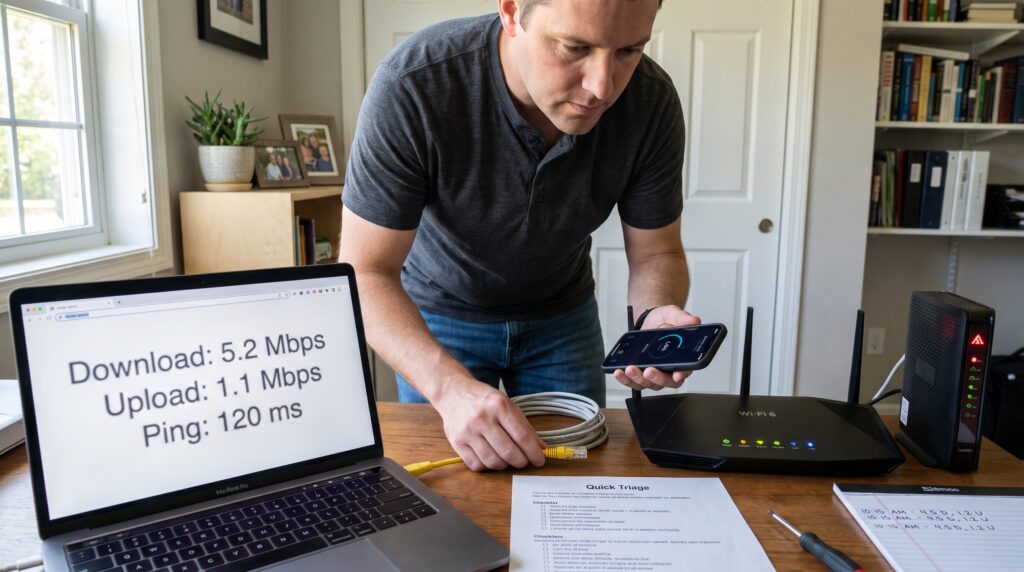
How to Troubleshoot a Slow Internet Connection starts here: a clear, fast checklist to stop buffering and get usable speeds in minutes. This guide gives immediate checks, device-specific fixes, and steps to diagnose whether the problem is inside the home or with the ISP. It blends quick triage for urgent meetings and deeper actions for lasting stability in 2026, with exact actions readers can take on Windows, Mac, phones, and routers.
Key Takeaways
- Start troubleshooting by running quick speed tests using a wired connection to identify if the issue is with Wi-Fi or the ISP.
- Restart your modem and router regularly and keep your router’s firmware updated to maintain optimal internet speed.
- Place your router centrally and avoid obstructions to improve wireless coverage and reduce slowdowns.
- Use Ethernet connections for devices requiring stable and low-latency connections like gaming or video calls, and select appropriate Wi-Fi bands based on device proximity.
- Monitor and manage connected devices to prevent bandwidth hogging and separate IoT devices to reduce interference.
- If wired speed is consistently below the plan, document speed tests and modem signals before contacting your ISP for a focused support process.
Quick Checks To Run First (5-Minute Triage)
Fact first: the fastest way to learn the cause is a quick, repeatable test. Start with a wired Ethernet test if possible and run one or two speed tests. Close all video calls, downloads, and cloud-sync apps before testing. If wired speed matches expected plan speeds, the issue is likely Wi‑Fi: if wired is slow, the modem or ISP is suspect.
Step-by-step quick triage (5 minutes):
- Physically check cables and power lights on modem and router. A loose coax or damaged Ethernet cable shows immediately.
- Reboot modem and router (unplug for 30–60 seconds), this often clears transient errors.
- Run a speed test on a wired device and then on the same device via Wi‑Fi. Document numbers: download, upload, and latency (ping).
- Test a second device (phone or laptop). If only one device is slow, focus device troubleshooting next.
Concrete example: a user reported 12 Mbps downloads on Wi‑Fi but 180 Mbps on Ethernet: this showed the issue was wireless congestion, not the ISP.
Fix Your Router And Home Network
Fact first: most home slowdowns trace to router setup, placement, or outdated firmware. Check these items in this order to restore consistent speeds.
-
Reboot and firmware: restart the modem then the router. Update router firmware from the vendor’s admin page to fix stability and throughput bugs. If the router’s firmware update notes mention Wi‑Fi fixes, apply them.
-
Cable and port health: swap the Ethernet cable to a known-good Cat5e/6 cable and test different LAN ports. Damaged ports or cheap cables can halve throughput.
-
Device count and bandwidth hogs: log into the router admin and view connected devices. Identify heavy users (streaming boxes, backups). Temporarily pause large transfers to see immediate effect.
-
Channel and band choices: use 5 GHz or 6 GHz close to the router and 2.4 GHz for distant devices. If many neighbors use the same channel, pick a less crowded one or enable automatic channel selection.
For deeper reading on router choices and specs, the article on router selection basics explains what features materially affect speed and coverage.
Reboot, Firmware, Placement And Wired Vs. Wireless Choices
Fact first: rebooting and smart placement produce the largest immediate improvements.
Reboot ritual: unplug power from modem, wait 30–60 seconds, plug modem in first, then router. This sequence resets the network boundary and DHCP leases.
Firmware: check the router’s settings for firmware updates. Updated firmware can fix slowdowns tied to QoS bugs or radio drivers. Back up current settings before updating.
Placement: place the router in a central, elevated spot away from metal appliances and thick walls. A router in a closet or basement will cut real-world speeds by 40–60% for many rooms.
Wired vs wireless choice: for gaming, video conferencing, and uploads, use Ethernet, reduces latency and packet loss. Use 5 GHz or 6 GHz for short-range high-throughput devices: use 2.4 GHz for longer range. If wiring is impractical, consider a wired backhaul mesh or powerline adapter.
An extra resource on fixing coverage and dead spots is available that details antenna adjustments and placement tests.
Troubleshoot Individual Devices — Windows, Mac, Phones And Smart Home Gadgets
Fact first: device-level problems often mimic network issues: isolate them by comparing a clean wired test and by checking per-device resource usage.
Windows: open Task Manager → Network or Resource Monitor to see which apps consume bandwidth. Disable background updates temporarily and test again. If DNS looks slow, switch to a known DNS like Cloudflare’s resolver to verify name-resolution delays.
Mac: use Activity Monitor to check network activity. Check System Settings for large background uploads (Time Machine or iCloud). A user found 3 background uploads consuming 250 Mbps, which explained sluggish browsing.
Phones and tablets: close background apps, toggle airplane mode briefly, and retest. Cellular vs Wi‑Fi tests help isolate whether the phone’s radio or the Wi‑Fi is at fault.
Smart home gadgets: security cameras and smart assistants often stream continuously. Temporarily power down nonessential IoT devices and observe speed changes. For large smart-home deployments, split IoT onto a guest or separate SSID to reduce interference with primary devices.
If device-level checks still point to the network, escalate to ISP diagnostics next.
Diagnose ISP And External Issues With Speed Tests And Signal Checks
Fact first: if a direct-to-modem wired test shows slow speeds, the ISP or modem hardware is likely responsible.
Procedure: connect a laptop directly to the modem using Ethernet. Bypass the router. Run at least three speed tests (morning, midday, evening) and record download, upload, and ping values. Compare those to the plan’s advertised speeds.
Check the modem status page for signal levels (SNR, downstream/upstream power). For cable modems, downstream SNR below ~30 dB or upstream power above 50 dBmV indicates line or coax issues.
Consult the ISP status page or outage map for known incidents. If tests show consistent underperformance, gather evidence: wired test screenshots, modem logs, times of day, and device counts. This documentation speeds up escalation.
For additional context on diagnosing coverage and placement, a practical guide on fixing Wi‑Fi dead spots explains measurement methods and placement adjustments.
Speed Test Interpretation, Outage Checks And When To Escalate
Fact first: interpret speed tests by looking at three metrics, download, upload, and latency, and compare wired-to-modem numbers to router and wireless results.
Interpretation tips:
- Download vs plan: sustained downloads far below advertised speed on a wired test suggest ISP or modem issues.
- Upload lag: low upload speeds often indicate a provisioning or upstream problem.
- Latency (ping): high or inconsistent ping causes lag in games and calls even if download looks fine.
When to escalate: after documenting wired test results, multiple device comparisons, and checking the ISP outage page, contact support. Provide modem status readings, timestamps of tests, and number of affected devices. If support requests a technician, insist they check outside line signal levels and splitters.
For broader security and connectivity context that helps when talking to support, consult the site’s core connectivity guides.
Preventive Maintenance And Simple Optimizations To Keep Speeds Consistent
Fact first: small, regular maintenance prevents most repeat slowdowns.
Routine tasks (monthly):
- Check router firmware and apply stable updates. A firmware cycle once per quarter is common for many vendors.
- Reboot network gear monthly or schedule an automatic nightly reboot when convenient.
- Audit connected devices quarterly and remove stale IoT entries: 27 devices left connected can create background chatter.
- Move bandwidth-heavy devices to wired or 5/6 GHz bands, and consider rate-limiting guest networks to protect primary bandwidth.
Optimizations that add resilience:
- Set up QoS or simple traffic prioritization for video calls and gaming.
- Use a reliable DNS resolver, which can shave 20–100 ms off page load in some regions. Cloudflare’s privacy-focused DNS has improved lookup times for many users.
- For long-term coverage, consider mesh systems with wired backhaul or targeted access points rather than a single consumer router.
For comparing ISPs and planning a durable upgrade, the buying guide on how to compare providers helps match speed tiers to real household needs. Also review privacy tips for safe browsing on busy networks in the article about privacy while browsing.