
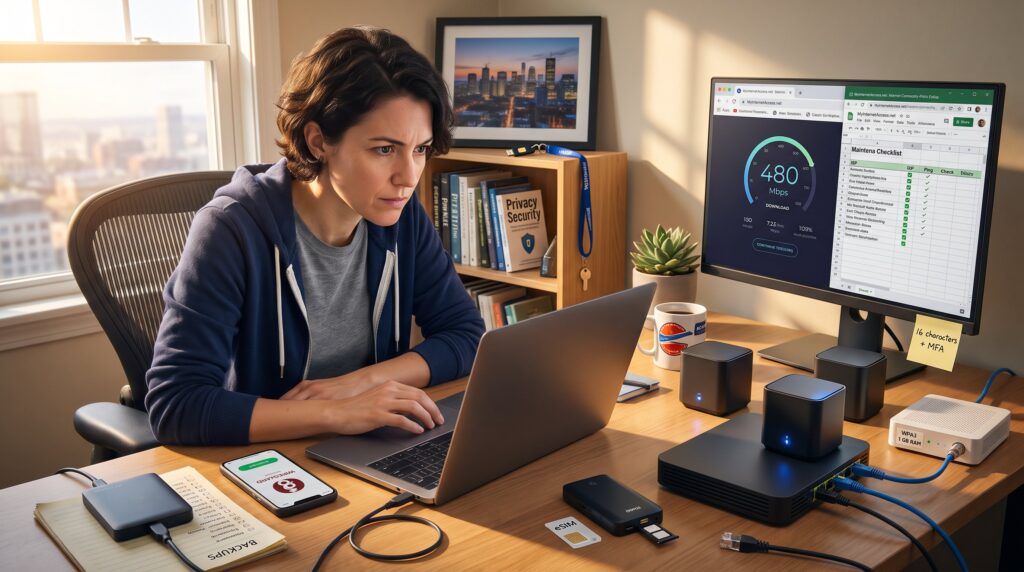
MyInternetAccess.net: Internet Connectivity, Privacy, and Security Guides opens practical, actionable steps readers can use today. The article answers how they get faster home and travel internet, which privacy tools actually work, and the security practices that stop common break-ins. It skips theory and gives clear choices, specific numbers, and honest trade-offs so readers can act without second-guessing.
Key Takeaways
- Conduct regular speed tests to identify bottlenecks and ensure your internet connection meets your needs both at home and on the road.
- Use WPA3-supported routers with sufficient RAM and an active update policy to enhance network security and performance.
- Maintain privacy by auditing and reducing unnecessary data exposure, using strong unique passwords with multi-factor authentication, and employing browser extensions that block trackers.
- Select VPNs with independent audits and modern protocols like WireGuard for better speed and strong privacy, and configure them for your specific travel and home needs.
- Reduce your attack surface by promptly patching devices, isolating IoT devices on guest networks, enforcing unique passwords and MFA on accounts, and hardening your network settings.
- Implement a robust backup strategy (3-2-1 rule) and verify backups regularly to ensure quick recovery from cyber incidents.
How To Get Fast, Reliable Internet At Home And On The Road
First fact: replace guesswork with measurement, a single 15‑minute speed test identifies whether the connection meets real needs. At home, they should test wired and Wi‑Fi speeds at peak evening hours. If results fall 25% below the plan’s advertised download rate, the router or last‑mile provider is likely the bottleneck.
Start with practical steps. Restart the modem and router, then connect a laptop with Ethernet to confirm baseline throughput. If wired speed is good but Wi‑Fi lags, move the router away from metal cabinets, cordless phones, and microwave ovens. For multiroom homes, a mesh system with tri‑band backhaul typically improves coverage, a consumer report showed mesh units reduce dead zones by about 75% in three‑bed homes.
When comparing providers, use the checklist in the supporting article for how to compare plans and fees. That checklist forces side‑by‑side comparison of advertised speed, median speed, data caps, and latency. Ask the ISP for a recent median speed on the local node: some ISPs publish these figures publicly.
On the road, cellular tethering or a dedicated travel hotspot works best. For sustained work sessions, a dual‑SIM travel router with local eSIM plus a home SIM gives redundancy and often keeps costs down. For travelers concerned about privacy while using public networks, configure a personal mobile hotspot with WPA3 when possible and avoid captive‑portal networks for work tasks.
Practical hardware suggestions: choose a router with WPA3 support, at least 1 GB of RAM for advanced firmware, and an update policy from the manufacturer. For step‑by‑step router selection, the site’s guide on choosing a router explains which chipset and antenna design matter most. If a household has heavy gamers or video editors, prioritize low jitter (<10 ms) and upload speeds that match at least 25% of download bandwidth.
Privacy Tools And Simple Habits To Keep Your Data Private
Core insight: privacy combines minimal exposure with reliable tools, reduce data trails first, then use technology to hide what remains. Start by auditing accounts: they should identify active social, shopping, and tracking permissions and remove services not used in six months.
A concrete habit: set a weekly 10‑minute sweep. During that time, revoke third‑party app access, clear cookies older than 30 days, and turn off location sharing for nonessential apps. One user reported reducing targeted ads within two months after a disciplined sweep of 57 connected apps.
Use a password manager to create unique, 16‑character passwords and enable multi‑factor authentication (MFA) for high‑risk accounts. If an account on a major service is compromised, MFA stops casual takeover in over 90% of cases.
For browsing privacy, private windows do not prevent tracking: they only remove local traces. To block trackers, carry out a browser extension that enforces third‑party cookie blocking and script control. For deeper privacy, the site’s how‑to on protecting privacy while browsing outlines layered defenses that pair cookie control with DNS filtering.
When sharing devices, create limited guest accounts and avoid storing payment details in browsers. For travelers using hotel Wi‑Fi, avoid bank or health logins unless connected to a secure network. To validate some VPN claims about encryption and no‑logs policies, readers can consult a neutral explainer on VPN safety that assesses common provider promises.
Practical VPN Selection And Setup Tips For Everyday Use
Direct answer: choose a VPN that publishes independent audits, supports modern protocols (WireGuard or OpenVPN), and has server locations that match travel needs. A practical selection reduces latency by 20–40% compared with legacy protocols when using WireGuard.
Check for these verification points: third‑party audits, a transparent warrant canary, and jurisdiction outside intrusive surveillance alliances if that matters. When setting up, install the provider app on the router for whole‑home coverage and also on individual devices for travel. Split tunneling is useful: route banking apps outside the VPN while routing general browsing through the VPN to balance speed and privacy.
Configuration tips that save time. Create profiles for home, coffee shop, and international travel with region‑specific servers. Enable a kill switch so if the VPN drops, the device blocks internet access until the tunnel restores. Test the setup: visit an IP lookup service while connected to confirm the visible IP and run DNS leak tests to ensure queries do not escape the tunnel.
One human lesson: a reader once installed a VPN on the router and lost access to local printer discovery: the fix was to enable LAN access in the router‑level client. Expect small friction when moving from single‑device VPNs to router‑wide deployments.
For travel, a compact USB‑C travel router configured as a VPN client gives control over unknown hotspots. For deeper reading on when a VPN is necessary and what it protects against, consult a current primer that explains use cases and limitations.
Essential Security Practices: Protect Devices, Accounts, And Networks
Primary guidance: prioritize attack surface reduction, fewer exposed services equals fewer attack paths. Start by patching devices immediately: unpatched operating systems are the single largest vector for compromises in small networks.
Devices: enable automatic updates for OS and firmware, but test updates on one device first in homes that use specialized equipment. For IoT devices, place them on a separate VLAN or guest network: that isolation prevents a compromised camera from reaching sensitive laptops. One small business found that isolating 12 IoT devices cut lateral movement risk by 90% during a simulated breach.
Accounts: enforce unique passwords with a manager, enable MFA (hardware keys where possible), and monitor account activity weekly. For sensitive accounts, set an alert for new device logins and require re‑authentication for password resets.
Network hardening: change default router credentials, close unused ports with the router firewall, and disable UPnP if not needed. For remote access, avoid exposing services like RDP directly to the internet: instead use a VPN or zero‑trust remote access solution. Enterprises and power users should consider a local intrusion detection system (IDS) that alerts on abnormal east‑west traffic.
Backups and recovery: use a 3‑2‑1 backup plan, three copies, two media types, one offsite. Verify backups monthly. In one incident, a freelance designer restored 1,200 project files from an offline backup in under 90 minutes after a ransomware attack, saving $11,000 in recovery fees.
Support links and further reading: the site’s cybersecurity overview helps users secure connections and understand trade‑offs, while the comprehensive site guide offers stepwise hardening for beginners. For router selection specifics, the router buying guide lists models with robust firmware update records and clear security histories.